ChiBots SRS RoboMagellan 2012: Nomad Overview

This summer, my friend Bill Mania and I entered our robot in the ChiBots SRS RoboMagellan contest. To steal the description directly from the website:

Robo-Magellan is a robotics competition emphasizing autonomous navigation and obstacle avoidance over varied, outdoor terrain. Robots have three opportunities to navigate from a starting point to an ending point and are scored on time required to complete the course with opportunities to lower the score based on contacting intermediate points.

Basically, we had to develop a robot that could navigate around a campus-like setting, find GPS waypoints marked by orange traffic cones, and do it faster than any of the other robots entered.

To give you an idea of what this looked like for us, here’s a picture of us testing in Bill’s backyard:

Our robot moving between two waypoints. Note the red-orange potters and yellow plastic bin–”red herrings” that our robot is wisely ignoring!

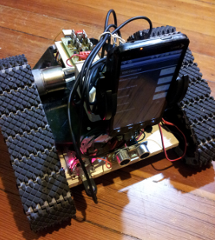
For our platform, we used a modified version of the CoroWare CoroBot, with additional sensors like ultrasonic rangefinders, a 6-DOF IMU, and wheel encoders.

Our software platform was ROS — rospy specifically — and we made liberal use of various components in the navigation stack. We were even able to attend the very first ROSCon in St. Paul, MN, which was a blast and greatly expanded our knowledge of the software and what it was capable of.

Over the next few weeks, I’ll be writing more detailed posts about the robot and specific challenges we faced, including:

  • Hardware and sensor overview
  • Using robot_pose_ekf for sensor fusion of IMU + wheel encoders to allow us to navigate using dead reckoning
  • Localization in ROS using a very, very sparse map
  • Our attempts to use the move_base stack with hobby-grade sensors, and why we ended up writing our own strategy node
  • Using OpenCV + ROS to find an orange traffic cone, and using this feedback to “capture” the waypoint

In the meantime, enjoy this video of the above scene, from the robot’s point of view!

Navigating a known map using a Generalized Voronoi Graph: an example

github code is here!

voronoi-bot is a robot that navigates by creating a Generalized Voronoi Graph (GVG) and then traveling along this graph to reach the goal. It requires a full map of the environment in order to navigate.

I completed this project during a class for Joel Burdick while an undergrad at Caltech. I’ve since added the code to github and started cleaning up the files so that they’re easier to understand and reuse (refactoring, adding tests, etc). This is still in progress, but the code is functional in the meantime.

Example output from the program, plotted in Matlab. The black dots define the boundary of the map, the red and blue boxes are obstacles, and the cyan dots are nodes in the GVG, constructed based on this map. The green dots show the start and end goal, the red lines show the path taken by the robot.
A video showing the robot in action (running in Player/Stage) is below.


To read more about using GVG for navigation, I recommend the following:

http://en.wikipedia.org/wiki/Voronoi_diagram

Sensor Based Planning, Part II: Incremental Construction of the Generalized Voronoi Graph
Howie Choset, Joel Burdick
http://citeseerx.ist.psu.edu/viewdoc/summary?doi=10.1.1.68.3533

Mobile Robot Navigation: Issues in Implementation the Generalized Voronoi Graph in the Plane
Howie Choset, Ilhan Konukseven, and Joel Burdick
http://www.ri.cmu.edu/publication_view.html?pub_id=1415

Path Planning for Mobile Robot Navigation using Voronoi Diagram and Fast Marching
Robotics Lab, Carlos III University
http://neuro.bstu.by/ai/To-dom/My_research/Papers-2.0/Closed-loop-path-planning/Voro.pdf


Agile Retrospectives Workshop

Earlier this year at work I led a short workshop on Agile Retrospectives. We already make use of the retrospective format very frequently within the technology department, but other departments are not as familiar, so I put together this workshop to show them how amazingly useful retrospectives can be.

The full presentation is here, and I’ve also replicated a version of it throughout the following post.

Agile Retrospectives Workshop

What is a retrospective?

A retrospective is a team activity, where team members meet to understand their current process, discuss how it can be improved, and generate action items that can be acted on before the next retrospective.

What are they good for?

  • improving your process
  • learning from past mistakes
  • celebrating accomplishments
  • getting your team on the same page
  • improving your work environment
  • making good teams great

Who can run them?

Anyone!

  • retros do not have to be run by managers!
  • in fact, it’s usually better if they are not

A retrospective is not…

a time to blame people

Regardless of what we discover, we understand and truly believe that everyone did the best job they could, given what they knew at the time, their skills and abilities, the resources available, and the situation at hand
– The Retrospective “Prime Directive”

a forum for fixing everything

  • retro often, and make small, incremental changes each time

Outline of a Retrospective

  • Set the stage
    • Make sure people feel comfortable
    • Check the safety level
  • Gather Data
  • Generate insights
  • Plan of action
  • Close
    • Want to leave on a positive note!
    • Review accomplishments and action items

Outline of a Retrospective: Example

Set the stage

  • Team gathers in conference room
  • Retro moderator gauges the “safety level”
    • team has been through lots of retros, comfortable giving feedback
    • things have been pretty “normal” since last retro
    • => high level of safety
  • Moderator introduces the format (see picture below)
    • Divide the board into four sections: Things we’re happy about, things we’re not happy about, Ideas, Appreciations
    • Write notes on stickies and put them on the board, followed by team discussion

Generate insights

  • Team members write down points on stickies and put them up on the board
  • Moderator takes a few min to “aggregate” the issues and mentally sort through them

Plan of action

  • Team discusses the stickies
  • Comes up with action items, if needed
  • (don’t have to have an action item for every point–sometimes the discussion is enough)

Close

  • Moderator reviews action items

Tips for Moderators

the format of a retro is very fluid, and facilitating is the art of choosing the correct format for the situation
that said, you can greatly improve your retrospectives with a little planning and empathy

Planning a Retrospective

  • Take some time before each retro to figure out the best format for the participants
    • What is the expected safety level?
    • How experienced are they in giving feedback?
    • What sort of issues do you expect to hear about?
    • Do they need to dig deep into an obvious issue, or do they need to brainstorm and mix things up?
    • Is an outside facilitator more appropriate?
  • Talk to some of the participants beforehand if you need to

Empathy is important!

  • The best facilitators are able to monitor the emotions of the participants, and adjust the format appropriately
  • You want to create an atmosphere where people can open up and get to the root cause of their issues
Teaching empathy is difficult, so if you are interested in learning more, I highly recommend reading An Anatomy of a Retrospective

Exercise: create your own retro

  • We’ll split up into groups, and each group will get a scenario
  • Consider the scenario, and choose which format would be appropriate (we’ll go over some examples in a moment), or create your own

Each group should answer the following questions for their scenario:

  • What is the expected safety level?
  • How experienced is the team in giving feedback?
  • What sort of issues do you expect to hear about?
  • Do they need to dig deep into an obvious issue, or do they need to brainstorm and mix things up?
  • Who would be the most appropriate facilitator?
  • How much time is needed?

Scenarios

Scenario 1

You work on a small, cross-functional team (3 developers, 1 QA, 1 BA) in the technology department. Your team has weekly sprints and bi-weekly retrospectives. The team is fairly mature, everyone is familiar with one another and this process has been going on for about six months at this point.
You recently started developing software for a new platform: Android. You’ve done 3 releases now, so things are pretty stable, but you want to see if you can do things better next time.

Scenario 2

You work in sales, and your team has spent the last six months working on replacing a legacy phone system with a shiny, new one. There were some bumps along the way, but the new system is now out the door and working fine.
This project involved a wide range of people from your department, technology, building management, etc. Some people worked on the project for its full length, others only worked on the project for a few weeks, but they’re all here now.
Some people in the room have done retrospectives, but not all. In fact, lots of people are skeptical that this will even be a good use of their time.

Scenario 3

You work in the Customer Service department. Your team has retrospectives regularly, but it seems like lately the same problems keep coming up every time. You’ve had action items in the past, but it doesn’t seem like that is working, since the problems still exist.
People are getting frustrated and are stuck when trying to think of fresh solutions. Every idea you come up with seems to either a) not work in practice, or b) require help from the Technology department, which is too busy with other projects.

Scenario 4

You are a member of the Senior Management Team. It’s the beginning of a new quarter, which is always a great time to step back and take a look at the big picture.
Most of you have done a retrospective before. There are a lot of strong-willed people in the room. Everyone is very busy, and doesn’t have any more than the hour that they’ve set aside for this retrospective.

Further Reading: A List of Retrospective Formats Of Which I Am Quite Fond

Timeline retrospective

An excellent format for a team retro at the end of a project

Appreciation Retrospective

Pair with the Timeline Retro above, for the end of a particularly difficult project

Complexity retro/root cause analysis

Another retro that is good for a small team (stream team) after the end of a project

Starfish

Good ol’ Starfish, a team standby

Learning Matrix

Actions Centered

These are very similar to pluses/deltas format, but with a little extra to mix things up and get people thinking creatively again

Top 5

Gather stickies just like +/deltas, but then only discuss the top five. Sometimes good to split up into five teams to discuss if it is a larger group. Good to use if it seems like retrospectives are too broad and don’t go deep into any particular topic

Circles and Soup

Allows the team to recognize which factors are within their control, so they can be constructive when making future plans
Good to use when team is feeling frustrated with issues/politics outside their control, or to preface a future-planning session

Sails and Anchors

Sometimes you need to step back and look at the big picture–what is pushing us forward? what is holding us back?

Force Field Analysis

Pick a goal, figure out what is pushing you towards that/holding you back. Sails and anchors format can also be used for the same purpose

Values-driven retro

Useful if you want to ensure all team members are on the same page about values

How-Now-Wow

Helps the team think of creative solutions to problems

And finally…
Retrospective Surgery

A retrospective for your retrospectives =)

Interview on RosieSays

My friend Emily has a fantastic blog over at Rosie Says, and she’s doing a series, So What Do You Do Exactly? where she interviews people she knows but doesn’t understand exactly what it is they do everyday (the beer post is my favorite so far).

Anyway, she interviewed me a little while ago, to learn what it’s like to be a kickass lady software developer. Check it out!

Chicago GTUG Presentation: Building Robots with the Sparkfun IOIO


Last night I presented at the Chicago GTUG. It was held at 1871 in Merchandise Mart, and wow is that a great space! It was a real pleasure to talk there.

Here’s a link to the presentation: https://docs.google.com/presentation/d/1id7sUVDHFXhKzujg3dPWivC3kM5o3r7NIrWkq3IB_Ws/edit

Links to references from the presentation:


Fritzing Part for a generic Dual Motor Controller

I needed a part for a generic motor driver when I was working in Fritzing the other day, and I couldn’t find one so I decided to create one.

Download the part here.

This motor driver consists of the basics needed for any dual motor controller:

  • VIN
  • GND
  • Motor 1 IN (+)
  • Motor 1 IN (-)
  • Motor 2 IN (+)
  • Motor 2 IN (-)
  • VCC
  • M1A
  • M1B
  • M2A
  • M2B

For example the DFRobot DRI0002 2A Dual Motor Controller or the Robokits RKI-1004 5A Dual Motor Driver.

Download the part here.

iohannes: a robot based off the Sparkfun IOIO

I will post something more thorough next week, but I wanted to get some pictures and a video up for the robot I’ve been working on.

The robot was inspired by the Sparkfun IOIO: a great little board that allows you to merge the world of Android phones with the world of hobby electronics. The result? A relatively cheap robotics platform with a huge range of possibilities.

Code is here: https://github.com/jessicaaustin/robotics-projects

Here’s the breakdown:

Base:
Lynxmotion Tri-Track chassis with two 12V DC motors — $220.95 (I actually got this used for $175)
Robokits RKI-1004 Dual Motor Driver (up to 5A) — $16 (thanks, Robot City Workshop!)
12.0V 2200mAh NiMh battery pack — $24

Electronics:
SparkFun IOIO — $49.95
HC-SR04 Ultrasonic distance sensor — $13.95
HTC Evo — “free”
9.6V 1800mA NiMh battery pack — $18

Total cost: $342.85

Currently the robot has two modes: a manual control mode and an autonomous, obstacle-avoidance mode. In manual mode you simply tell the motors to go forward, backwards, left or right. In obstacle-avoidance mode the robot will move forward until an obstacle is detected, at which point it will execute an “evasive maneuver” to clear the obstacle, and continue as before.

Code is here: https://github.com/jessicaaustin/robotics-projects

Next steps: get rosjava installed and integrated with the application. This will allow for remote control of the robot, plus remote computation like image processing of camera data.

Example code for Python OpenCV tutorials

Lately I’ve been getting into OpenCV. There are plenty of great tutorials out there, but I hate copy/pasting snippets of code from a blog post when I want to try something out.

So I started this repo on github: opencv-tutorial.

All the code runs! and has plenty of comments. I hope you find it useful as you go through these tutorials yourself. I also think the files are good starter templates for more complex scripts.

Moving from Stage 3 to Stage 4: laser and ranger

I recently moved to a new laptop, and in the process of installing player/stage, I moved from Stage 3.2.2 to Stage 4.0.1.

When I tried running a project of mine, however, I got the following error:

jaustin@navi:~/dev/player-bots/voronoibot$ robot-player cfg/voronoi.cfg
Registering driver
Player v.3.0.2

* Part of the Player/Stage/Gazebo Project [http://playerstage.sourceforge.net].
* Copyright (C) 2000 - 2009 Brian Gerkey, Richard Vaughan, Andrew Howard,
* Nate Koenig, and contributors. Released under the GNU General Public License.
* Player comes with ABSOLUTELY NO WARRANTY.  This is free software, and you
* are welcome to redistribute it under certain conditions; see COPYING
* for details.

invoking player_driver_init()...
 Stage driver plugin init
 
 ** Stage plugin v4.0.1 **
 * Part of the Player Project [http://playerstage.sourceforge.net]
 * Copyright 2000-2009 Richard Vaughan, Brian Gerkey and contributors.
 * Released under the GNU General Public License v2. 
 
success
 Stage plugin:  6665.simulation.0 is a Stage world
stall icon /usr/share/stage/assets/stall.png 
 [Loading cfg/lab.world][Include pioneer.inc][Include map.inc][Include sick.inc]f: cfg/lab.world
 
err: Model type laser not found in model typetable (/build/buildd/stage-4.0.1/libstage/world.cc CreateModel)
err: Unknown model type laser in world file. (/build/buildd/stage-4.0.1/libstage/world.cc CreateModel)

The model type laser is defined in a couple of configs I have, like so:

driver
( 
  name "stage"
  provides [ "position2d:0" "laser:0" "speech:0" "graphics2d:0" "graphics3d:0" ]
  model "r0" 
) 
define sicklaser laser
(
  # laser-specific properties
  # factory settings for LMS200
  range_max 8.0 
  fov 180.0 
  samples 361
  
  #samples 90 # still useful but much faster to compute
  
  # generic model properties
  color "blue"
  size [ 0.156 0.155 0.19 ] # dimensions from LMS200 data sheet
) 

At first I thought I had screwed up my stage installation, and was at the point where I was going to try to install from source. But then! I saw this in the README.txt file that is bundled with Stage 4 source:

Version 4.0.0
————-

Major new release since worldfile syntax and API have both changed due
to a new unified ranger model. Laser model is now deprecated in favour
of the ranger. This follows a similar change in Player 3, where laser
interface support was deprecated but still in place due to lack of
Stage support. This release fixes that.

So since “laser” has been replaced by “ranger”, I replaced those words in my config files as well:

driver
( 
  name "stage"
  provides [ "position2d:0" "ranger:0" "speech:0" "graphics2d:0" "graphics3d:0" ]
  model "r0" 
) 
define sicklaser ranger
(
  # laser-specific properties
  # factory settings for LMS200
  range_max 8.0 
  fov 180.0 
  samples 361
  
  #samples 90 # still useful but much faster to compute
  
  # generic model properties
  color "blue"
  size [ 0.156 0.155 0.19 ] # dimensions from LMS200 data sheet
) 

And it worked!

Remotely controlled pan/tilt camera unit


One of my colleagues at work works remotely, and we make good use of Skype and gchat to communicate with each other. However, when he’s calling in and talking to a big group, it can be hard for him to see everyone at once unless we constantly rotate the laptop around to focus on whoever is talking. Thus I thought it would be neat for him to able to control the movement of a webcam remotely.
I was inspired by seeing this pan/tilt bracket from SparkFun.com. Using an Arduino would make things very easy, since it has the Servo library and built-in serial communication. As for the “remotely controlled” part, I set up an apache webserver on the local machine (apache http server is actually already installed if you’re running OSX, more on that later) that would use a CGI script to send commands to the Arduino via a serial connection.

Parts List

Assembling the pan/tilt unit

Assembly was pretty straightforward, using the instructions on SparkFun’s product page.


I used balsa wood (available at hardware stores and art supply stores–that is, pretty much everywhere) and wood glue to provide a mount for the pan servo. This is probably the cheapest and most low-tech approach, but you could of course use any material you like.


For mounting the camera, I pulled the camera part from the base and then screwed this on to the top of the pan/tilt bracket. Again, this will depend on your camera. Some cameras, like the Microsoft LifeCam VX-3000 Webcam, have screw-on bases and thus make this part pretty easy.

Arduino connections

I wanted to keep things modular, so to connect the servos to the Arduino I installed 2 3-pin male headers on a PC board. I wired wires going from the servo signal pins to Arduino pins 8 and 9, and from the power pins to Arduino pins GND and +5V. I also threw in an LED in parallel with the power as an extra indicator that the board was plugged in and powered.

Arduino Code

Once you’ve uploaded the following code to your Arduino, you should be able to control the pan/tilt unit via the Serial Monitor.


#include <Servo.h> 
 
Servo pan_servo;
Servo tilt_servo;
int incomingByte;
 
void setup() 
{ 
  // attach the servos and startup the serial connection
  pan_servo.attach(9);
  tilt_servo.attach(8);
  Serial.begin(9600);
  resetAll();
} 
 
void loop() 
{ 
  // check to see if something was sent via the serial connection
  if (Serial.available() > 0) {
    incomingByte = Serial.read();

    // move the servos based on the byte sent
    if (incomingByte == 'e') {
      moveServo(tilt_servo, 1);
    } else if (incomingByte == 'x') {
      moveServo(tilt_servo, -1);
    } else if (incomingByte == 'd') {
      moveServo(pan_servo, 1);
    } else if (incomingByte == 's') {
      moveServo(pan_servo, -1);
    } else if (incomingByte == 'r') {
      resetAll();
    }
  }
  
} 

// move the servo a given amount
void moveServo(Servo servo, int delta) {
 int previousValue = servo.read();
 int newValue = previousValue + delta;
 if (newValue > 180 || newValue < 30) {
  return;
 }
 servo.write(newValue); 
}

// put the servos back to the "default" position
void resetAll() {
 reset(pan_servo);
 reset(tilt_servo);
}

// put a servo back to the "default" position (100 deg)
void reset(Servo servo) {
 int newPos = 100;
 int previousPos = servo.read();
 if (newPos > previousPos) {
  for (int i=previousPos; i<newPos; i++) {
    servo.write(i); 
    delay(15);
  }  
 } else {
  for (int i=previousPos; i>newPos; i--) {
    servo.write(i); 
    delay(15);
  }  
 }
}

Controlling the Arduino via a script

I used todbot‘s arduno-serial.c program to control the Arduino via the command line.

Get arduino-serial.c and test it out:


wget http://todbot.com/arduino/host/arduino-serial/arduino-serial.c

gcc -o arduino-serial arduino-serial.c

# test moving the camera up and to the right

./arduino-serial -b 9600 -p /dev/tty.usbmodem3d11 -s dddddddddddddddeeeeeeeeeeeeeee


Running the script via Apache HTTP Server

At this point, someone could ssh in to the computer running the camera and control it via the command line, but I wanted to have a slightly more sophisticated interface. I decided to go with a simple jQuery-powered web page that hits a CGI script served up by apache. (Note: of course, if you want people to be able to control the camera from outside your local network, you’ll need a static IP address for your machine. In that case, you should probably also make sure you set up basic authentication for your apache server.)

If you’re running OSX, apache is already installed. You can start it up by running sudo apachectl start, the config is located at /etc/apache2, and the DocumentRoot points to /Library/WebServer/ by default.


cd /Library/Webserver/CGI-Executables
vim pan-tilt.cgi

pan-tilt.cgi is the following ruby script:


#!/opt/local/bin/ruby

query_string=`echo $QUERY_STRING`

if query_string.length != 0
  `/opt/local/bin/arduino-serial -b 9600 -p /dev/tty.usbmodem3d11 -s #{query_string}`
  result=`echo $?`
  result=result.gsub(/\n/,"")
end

print "Content-type: application/json\n\n"
print "{\"result\": \"#{result}\"}\n"

Finally, create the web page:


cd /Library/Webserver/Documents
vim pan-tilt.html

pan-tilt.html:


<html>
    <head>
        <title>Pan/Tilt Camera Control</title>
        <script type="text/javascript" src="http://ajax.googleapis.com/ajax/libs/jquery/1.5.1/jquery.min.js"></script>
        <script type="text/javascript">
            // send the input to the cgi script
            // note: sending 3x the input for every keypress, to make the movement smoother
            var submitInput = function(input) {
                $.post("/cgi-bin/pan-tilt.cgi?" + input + input + input);
            };
            
            // submit input when someone presses a key down
            $(document).keydown(function(event) {
                console.log(event.keyCode);
                switch(event.keyCode) {
                   case 82:
                    submitInput('r');
                    break;
                  case 83:
                    submitInput('s');
                    break;
                  case 68:
                    submitInput('d');
                    break;
                  case 69:
                    submitInput('e');
                    break;
                  case 88:
                    submitInput('x');
                    break;
                  case 37:
                    submitInput('s');
                    break;
                  case 39:
                    submitInput('d');
                    break;
                  case 38:
                    submitInput('e');
                    break;
                  case 40:
                    submitInput('x');
                    break;
                  default:
                }
            });
        </script>
        <style type="text/css">
        table tr, table td {
            border: 1px solid black;
            padding: 5px;
            width: 25px;
            height: 35px;
            text-align: center;
        }
        table {
            float: left;
            margin: 5px;
        }
        </style>
    </head>
    <body>
        <h1>Pan/Tilt Camera Control</h1>
        <div>
        <table>
          <tr>
            <td></td>
            <td>&amp;amp;uarr;</td>
            <td></td>
          </tr>
          <tr>
            <td>&amp;amp;larr;</td>
            <td>r</td>
            <td>&amp;amp;rarr;</td>
          </tr>
          <tr>
            <td></td>
            <td>&amp;amp;darr;</td>
            <td></td>
          </tr>
        </table>
        <table>
          <tr>
            <td></td>
            <td>e</td>
            <td></td>
          </tr>
          <tr>
            <td>s</td>
            <td>r</td>
            <td>d</td>
          </tr>
          <tr>
            <td></td>
            <td>x</td>
            <td></td>
          </tr>
        </table>
        </div>
        <div style="clear:left"><br/>todo: add security</div>
    </body>
</html>

Testing

At this point you should be able to go http://localhost/pan-tilt.html and control the camera from there. Check out the video below!

Go back to top